
Set up the customer display
Show the order, totals, tips and loyalty to your customer on a second monitor, a browser screen or an Android HDMI screen.
The customer display shows items as they are rung, the total, card and tip prompts, and a thank-you screen. When the till is idle it shows a welcome screen or a slideshow.
Choose where it shows#
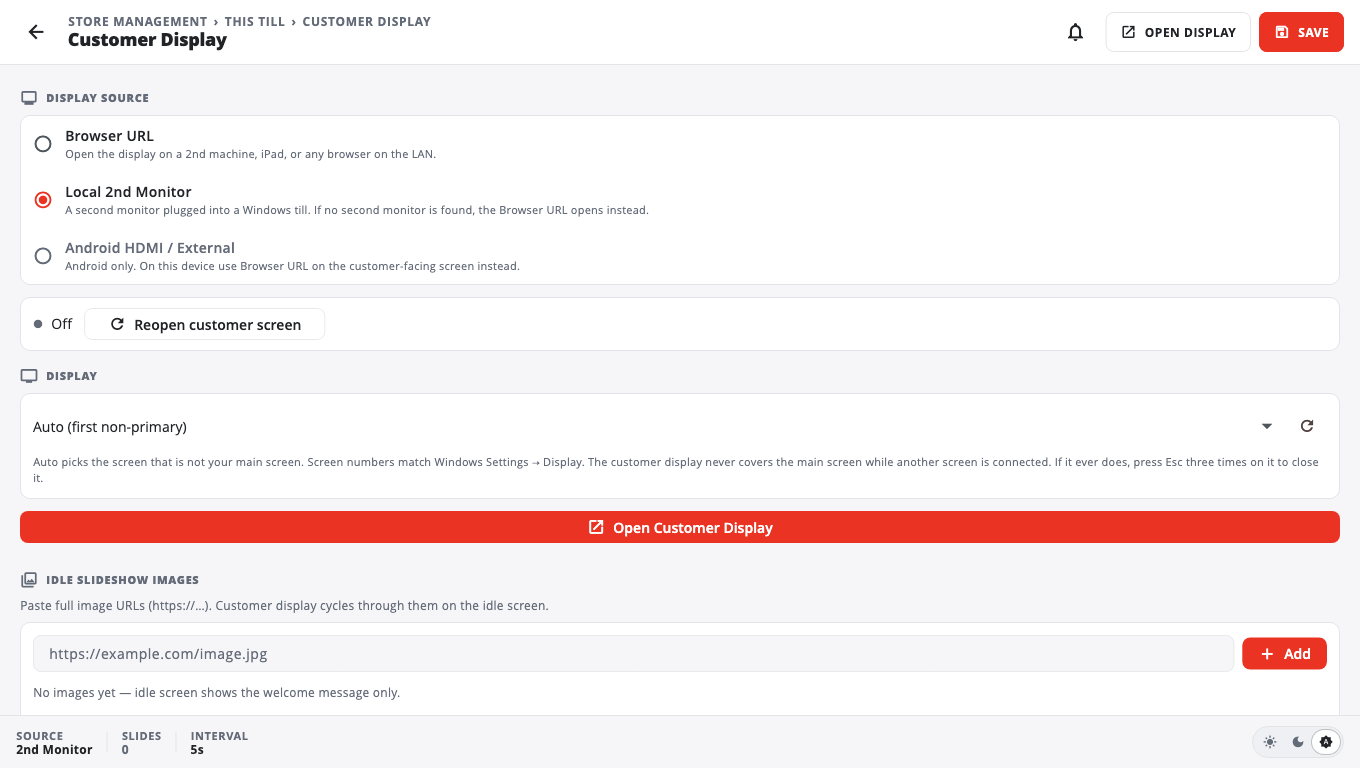
- Open Store Management → This Till → Customer Display.
- Under Display Source pick one:
- Local 2nd Monitor — a second monitor plugged into a Windows till.
- Browser URL — any screen with a web browser on the same Wi-Fi (another PC, an iPad). This is the default.
- Android HDMI / External — an HDMI or USB-C screen on an Android register. It reopens by itself when the screen is plugged back in.
- For Local 2nd Monitor with two screens, pick the screen under Display. Auto (first non-primary) picks the screen that is not your main screen. Screen numbers match Windows Settings → Display.
- Tap Save, then Open Customer Display (or Open Display at the top).
Browser URL#
When you open it, the till shows a message like Customer display: http://192.168.1.20:…. Type that address into the browser on the customer-facing screen. Both devices must be on the same network.
On the same phone or tablet#
On a phone or small tablet you can also open Customer Display from the side menu to show the customer screen on the device itself — handy for turning the screen around at the counter.
Make it yours#
- Idle Slideshow Images — paste full image links (https://…); set the Slide interval.
- Idle Message and Thank you / welcome message.
- Content — Show store logo on idle screen, Show store logo full screen when idle, a logo link or Browse from device, and Dim screen after minutes of idle (0 = never).
- Display theme — Auto, Light or Dark.
- Show product images — off shows item names only.
- Cash Discount / Dual Pricing — Show "Cash Discount" banner on display and its Customer-facing label. The surcharge itself is set in Store Settings.
Touch screens and loyalty#
- If customers can tap the display, turn on Customer display is a touch screen (off by default).
- Show loyalty keypad on customer display then lets the customer type their phone number. Turn on Mask digits as customer types if the line can see the screen.
Turn it off#
Tap Turn Off at the top of the Customer Display page. A display that was open reopens by itself when the till restarts until you turn it off.
Good to know#
- On Windows the customer display never covers the main screen while another screen is connected. If it ever does, press Esc three times on it to close it.
- On a touch display, tapping any corner 8 times within 3 seconds asks for a manager PIN to exit.
- If no second monitor is found, the till opens the browser address instead.
- A tip prompt on the customer display is chosen in the card terminal settings (Tip prompt → On customer display).
- Problems: Customer display troubleshooting.
Was this helpful?
Thanks for letting us know.
Sorry it did not help. Tell us what was missing: open Help & Support in the app and choose Report a problem, or email support@builtsofthub.com.