
Void a sale
Cancel a finished sale that was rung by mistake — card payments are reversed and stock goes back.
A void cancels a whole finished sale as if it never happened. Use it for mistakes — a duplicate sale, the wrong items, a payment problem. If the customer is bringing items back, use a refund instead.
Void the last sale#
- Tap More → Void Last Sale.
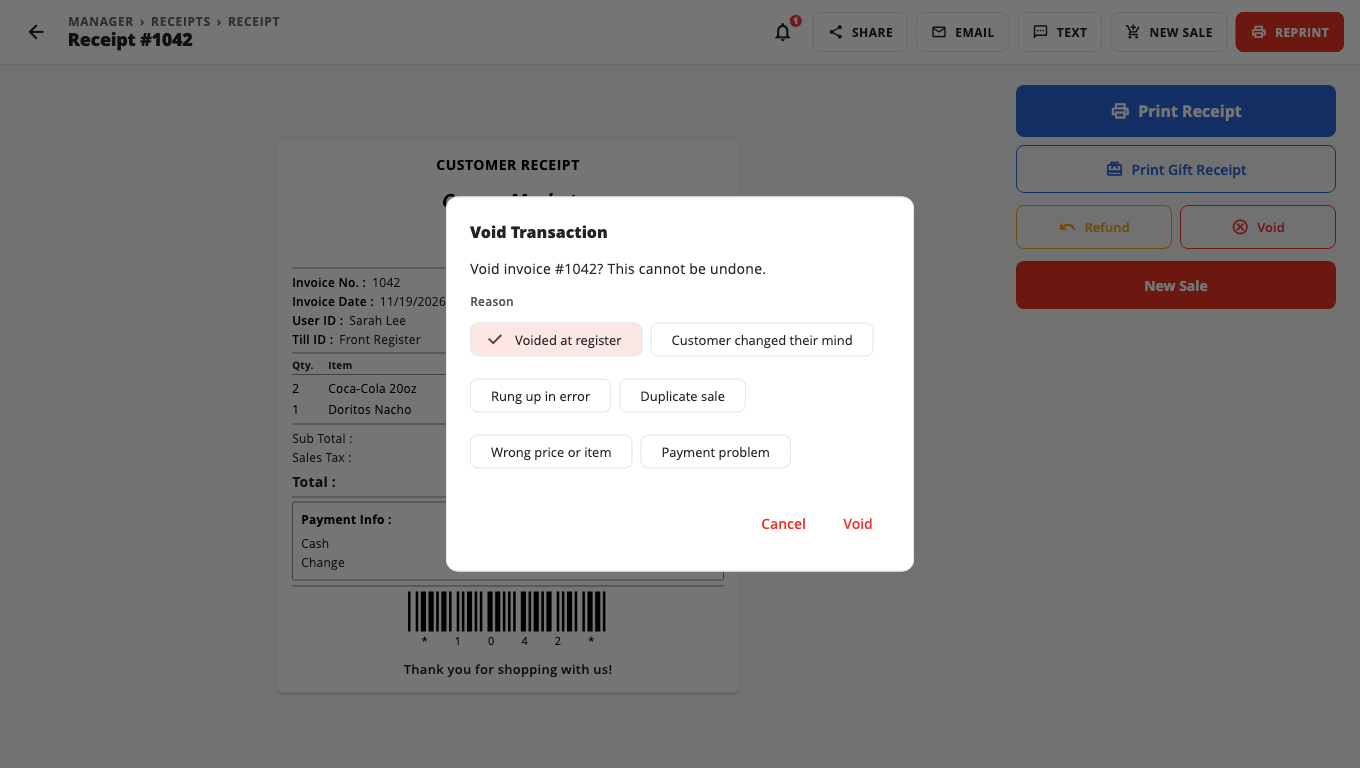
- In Void Transaction, pick a Reason and tap Void.
- A cashier then needs a manager to type their PIN (Owner / Manager PIN, "Voiding invoice #…"). Managers and owners are not asked.
Void an older sale#
- Tap Receipts (under the Grand Total, or More → Receipts).
- Find and open the sale.
- Tap Void, pick a reason and tap Void again. A cashier then needs a manager's PIN.
What happens#
- Card payments are reversed on the card terminal first (Cancelling card authorization at the terminal…). If the terminal cannot cancel it, the till tells you and does not void.
- Items go back into stock.
- The sale shows as voided in reports and BuiltOFFICE, with who voided it and why.
When you cannot void#
- A sale paid with a gift card or store credit — a void does not give that value back, so process a refund instead.
- A sale that already has refunds — return the remaining items instead.
- A card payment with no transaction ID on record — void it on the card terminal itself, or process a refund.
- Already voided — you see "Invoice #… is already voided."
Good to know#
- Removing one line before the sale is finished is not a void — just remove it from the cart. See Ring a sale.
- Training sales are not real and cannot be voided.
Was this helpful?
Thanks for letting us know.
Sorry it did not help. Tell us what was missing: open Help & Support in the app and choose Report a problem, or email support@builtsofthub.com.