
Age verification (ID checks)
Check a customer's ID when you sell tobacco, alcohol or other age-restricted items.
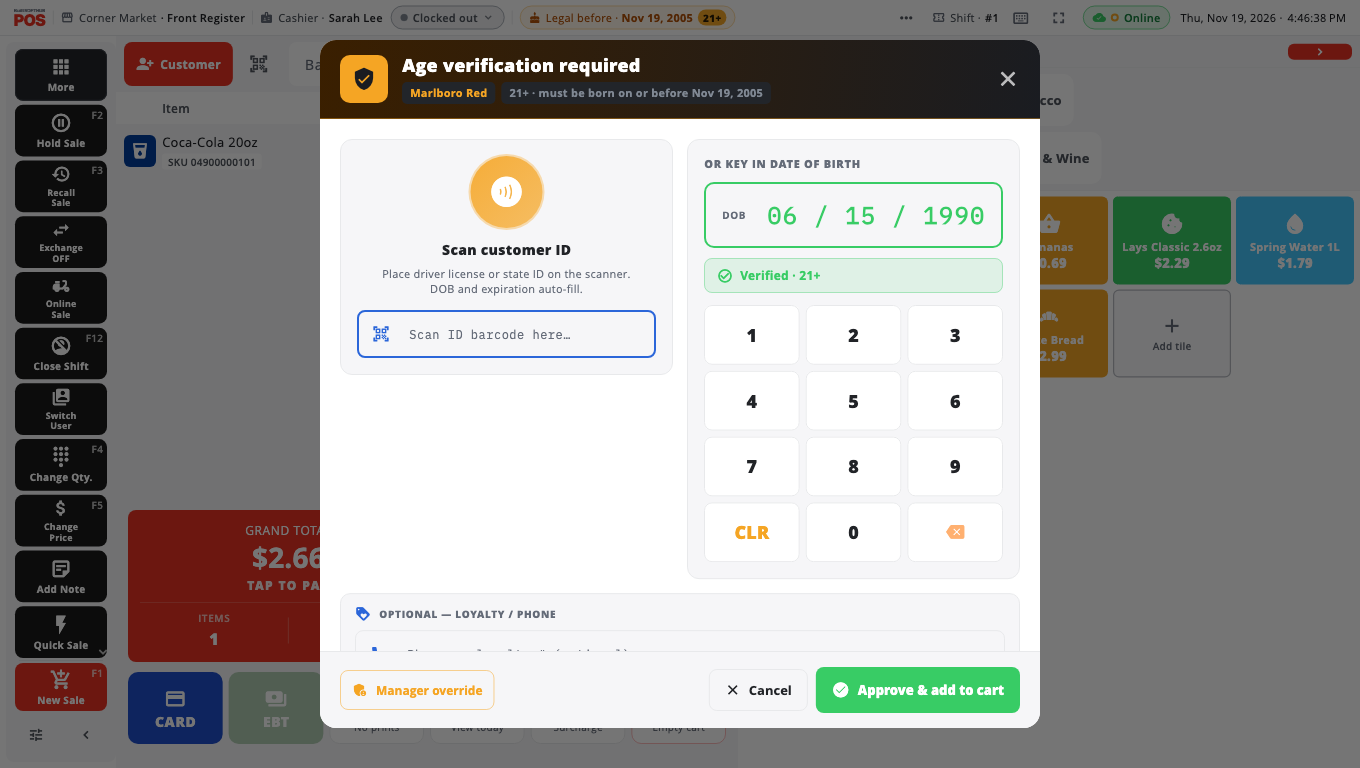
Products and categories marked as age-restricted in BuiltOFFICE ask for an ID check when you add them. The line shows ID required · 21+ (or the store's age).
Check the ID#
- Scan or tap the item. Age verification required opens.
- Do one of these:
- Scan the ID: scan the barcode on the back of the driver license or state ID with your barcode scanner (Scan ID barcode here…). The date of birth fills in.
- Camera scan: on a tablet or phone, tap Camera scan and point the camera at the barcode on the back of the ID.
- Type it: enter the date of birth on the keypad as MMDDYYYY.
- If the customer is old enough, the screen says Verified · 21+. Tap Approve & add to cart.
- If they are too young, it says Under 21 — cannot sell and the item is not added.
When an ID looks wrong#
If a scanned ID raises warnings, the till lists them and shows Check this ID carefully. Compare the photo and the card. A manager must approve before the sale can go on (Owner / Manager PIN, "Approve a flagged ID").
Manager override#
Tap Manager override to approve without an ID. The Owner / Manager PIN box opens ("Manager override — approve without ID"). A manager types their PIN, and the override is logged for compliance.
Optional buttons (off by default)#
An owner can turn these on in Store Management → This Till → Terminal Settings:
- "Visually verified" approve button — the cashier approves after looking at the ID, without typing the date of birth.
- "Skip" override button — skips the check with no PIN. Every skip is logged. Leave this off unless a manager has approved it.
Good to know#
- The check covers the sale: once the customer is verified, more age-restricted items in the same sale usually do not ask again.
- You can run a check at any time with Age Verification in More.
- Every check — approved, refused or overridden — is recorded. Owners can review them in Store Management → Audit Center → Age Verification.
- The camera needs permission. If you see Camera access is off, tap Open Settings and allow the camera for BuiltPOS.
- To mark products as age-restricted, see Products and categories.
Was this helpful?
Thanks for letting us know.
Sorry it did not help. Tell us what was missing: open Help & Support in the app and choose Report a problem, or email support@builtsofthub.com.