
Close the day and print the Day Report
Close the business day, print or email the Day Report, and find past Z Reports.
There are two end-of-period reports on the till:
- The Z Report prints when a shift closes. It covers one drawer for one shift. See Open and close a shift.
- The Day Report prints when you close the day. It covers the whole business day on this till.
Close Day is for Owners, Admins, Managers and Shift Leads.
Close the day#
- Close every open shift first. If a shift is still open, BuiltPOS warns Open shifts detected. Tap Close Shift now to go and close it. A manager can tap Continue anyway, which asks for a manager PIN.
- Clear the cart.
- Open More and tap Close Day. (You can also go to Store Management → Day Reports → Close Day.)
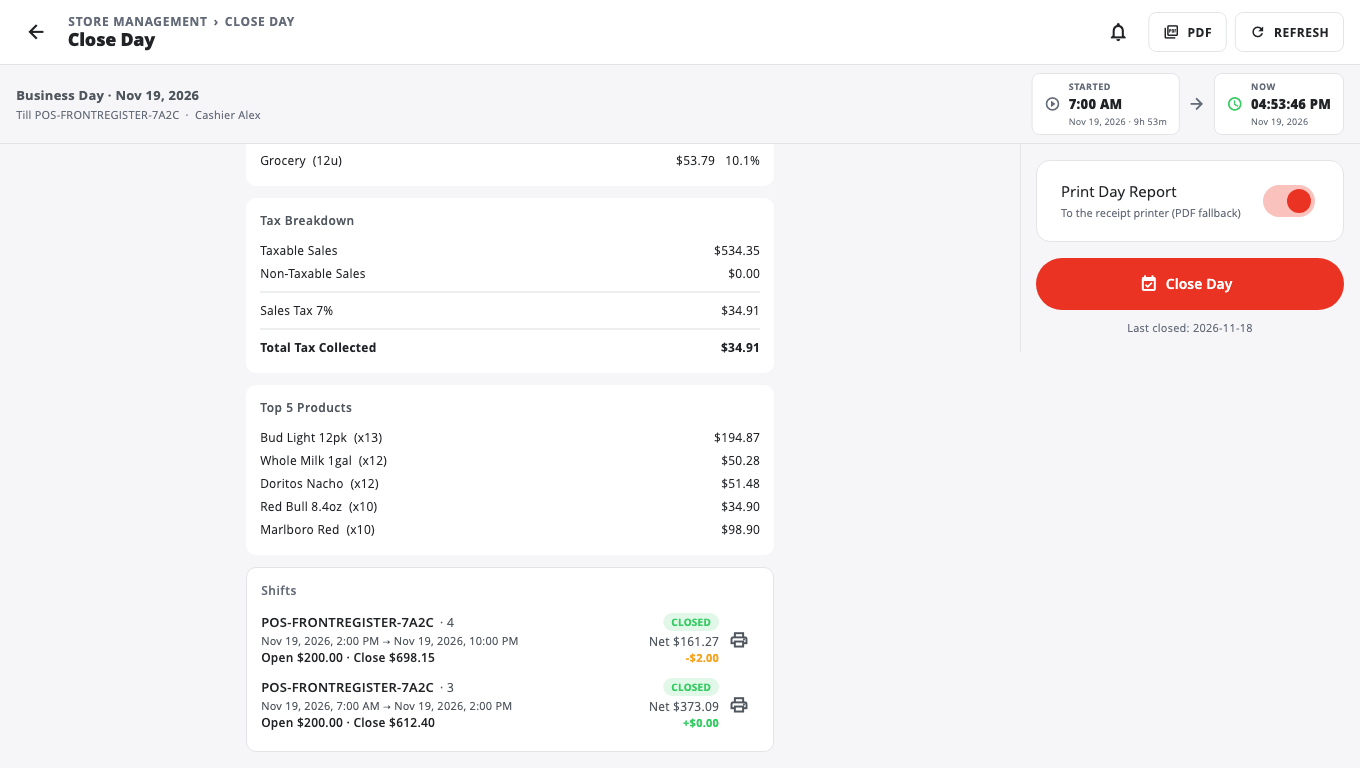
- Check the day's figures and the list of Shifts on the screen.
- Leave Print Day Report on if you want a paper copy. It prints to the receipt printer, or makes a PDF if no receipt printer is set.
- Tap Close Day, then Close Day again in the confirm box.
The Net Sales line#
The Day Report shows NET SALES (after Returns & Payouts). That is total sales with tax, less returns and less cash payouts for the day.
Stores with more than one till#
- Close Day closes and reports this till only. Close the day on each till.
- Use This till / Whole store (all tills) at the top to look at the whole store for the calendar day. Whole store needs a connection to the server.
- Self-order kiosk sales are not on any till. The main till (the lowest till number) adds a KIOSK SALES section to its printed and emailed report.
Reprint a report#
- Today's Z Reports: on the Close Day screen, tap the print icon next to a closed shift.
- Older Z Reports: open Store Management → Audit Center → Shift Records and tap Print Z-report on the shift.
- Day Report: open Close Day again and use the print option.
Settings#
These live in Store Management → This Till → Terminal Settings → Identity, under Close Day (End of Day):
- Show "Close Day" in More menu — on by default.
- Auto Close Day (end of business day) — off by default. When on, the till closes the previous day for you the next time it starts.
- Print Day Report on close — on by default.
- Email Day Report on close and Day Report Email — off by default. Turn the switch on and enter an address to have the report emailed.
Good to know#
- On a phone there is no More button on the sale screen. The same buttons are under Functions.
- If the till was off for a few days with Auto Close Day on, you may see Automatic Close Day caught up with a button to print each missed day.
- Managers can see store-wide sales in more detail in BuiltOFFICE. See Reports.
Was this helpful?
Thanks for letting us know.
Sorry it did not help. Tell us what was missing: open Help & Support in the app and choose Report a problem, or email support@builtsofthub.com.