
Open and close a shift
Count the drawer to start a shift, then count it again and close the shift to print the Z Report.
On this page
BuiltPOS will not take a sale until a shift is open on the till. A shift starts with the cash you count into the drawer and ends with the cash you count out.
Start a shift#
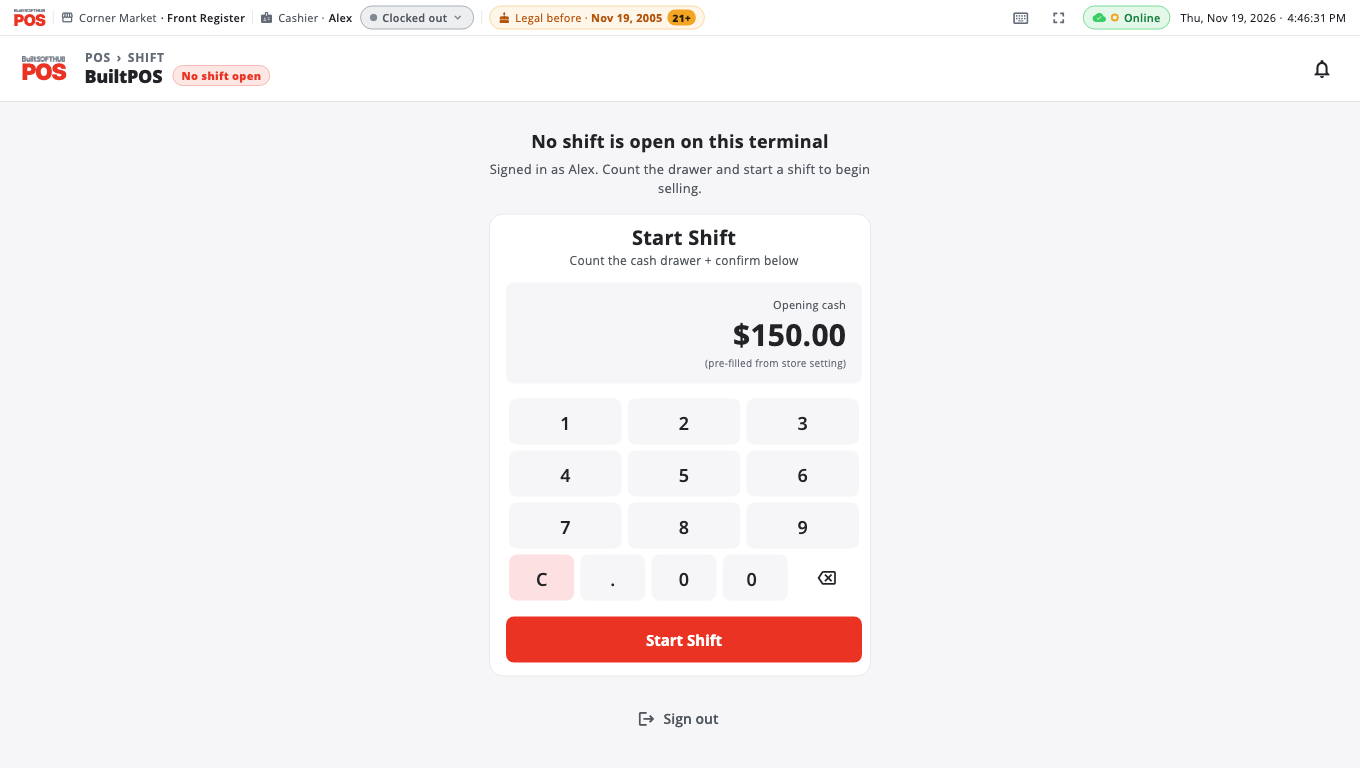
- Sign in with your PIN. If no shift is open, the till shows No shift is open on this terminal.
- Count the cash in the drawer.
- Type the amount on the keypad under Opening cash. Digits fill in from the cents, so
10000is $100.00. You can also tap . to type the point yourself:150.is $150.00 and3.5is $3.50. The point only works within the first three digits, so to retype a pre-filled amount, tap C first.- If your store set a default opening amount, it is already filled in and marked (pre-filled from store setting). Change it if your count is different.
- Tap Start Shift.
You can also start a shift from the Home screen: tap POS and the same Start Shift box opens.
Close the shift#
- Finish or hold any sale on screen. The till will not close with items in the cart.
- Open More and tap Close Shift (or tap Close Shift on the Home screen).
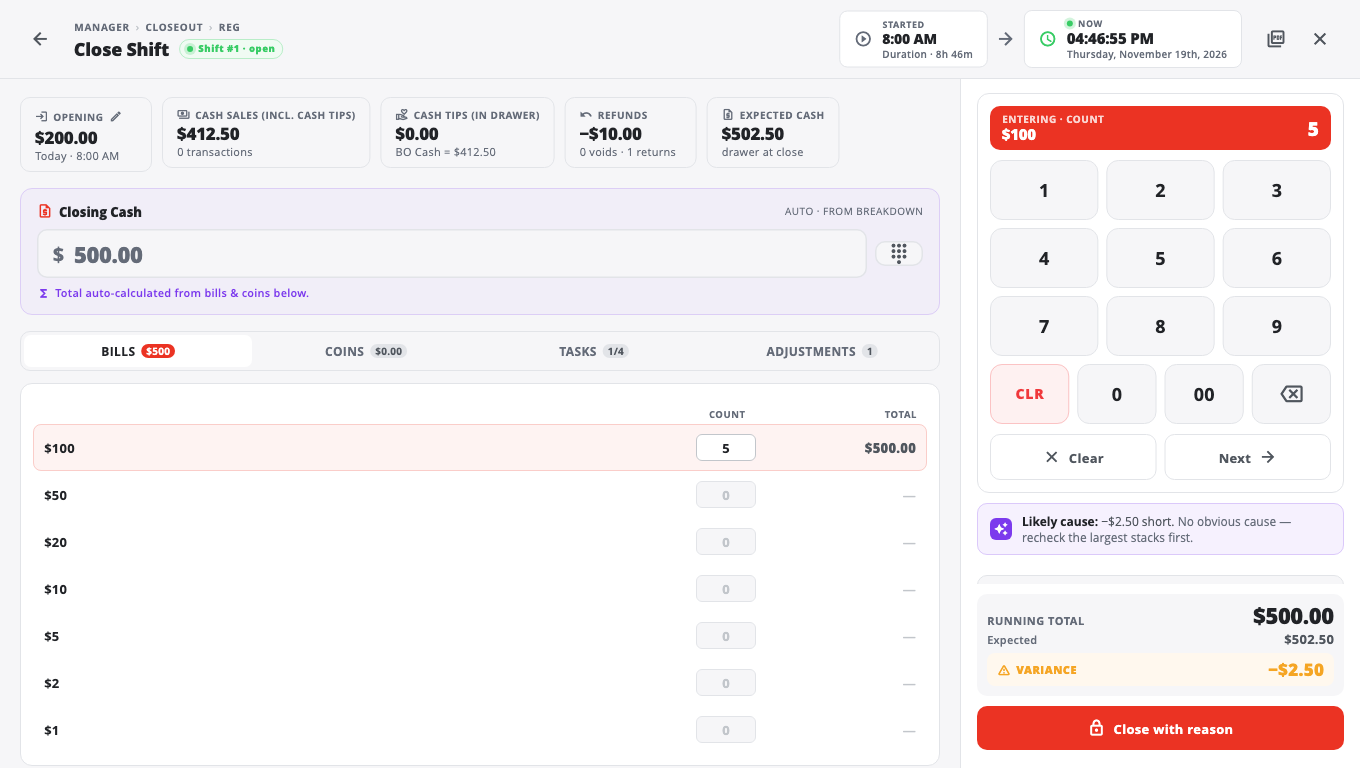
- Under Closing Cash, count the drawer. Either type the total in Direct entry, or enter how many of each bill and coin under BILLS & COINS and let BuiltPOS add it up.
- Check the bar at the bottom: it shows what you Counted, what was Expected and the VARIANCE (over or short).
- Tick the tasks in the checklist that you have done (for example Cash drop to safe completed).
- Tap Close.
- In the confirm box:
- If the drawer is over or short, pick a REASON FOR VARIANCE and add notes if you need to.
- If a PIN is asked for (OWNER / MANAGER PIN REQUIRED), a manager enters theirs.
- Tap Close Shift (or Close & Lock when a PIN was needed).
- If anyone is still clocked in, BuiltPOS asks Clock out at close?. Untick anyone who is still working, then confirm.
- The Shift Closed screen shows the Z Report. It prints by itself to the receipt printer. Use Re-print or Save PDF if you need another copy.
- Tap Done — Sign out, or let the 20-second countdown sign you out.
Good to know#
- When a manager PIN is needed. A cashier closing a shift always needs an Owner or Manager PIN. A manager needs one when the drawer is $20 or more over or short. Any variance at all needs a reason.
- Wrong opening amount? On the Close Shift screen, tap the edit icon on Opening, enter the right amount and pick a reason. A manager PIN is then needed to close.
- Check the shift before you close. Tap the report icon at the top of the Close Shift screen to preview the shift report (an X Report) without closing.
- Z Report did not print? You will see "Printer offline — Z Report was NOT printed". Reprint it later from Store Management → Audit Center → Shift Records.
- See card, EBT and other totals at close. Turn on Show sales by payment type at Close Shift in Store Management → This Till → Terminal Settings → Cash Drawer. It is off by default. The count itself is always cash only.
- Held sales and open tabs on this till are listed before the count (setting Show open items (held sales, open tabs) at Close Shift, on by default). The shift closes either way.
- Running without shifts. A store that does not use drawer shifts can turn off Require an open shift to sell in Terminal Settings → Cash Drawer. It is on by default.
- On a phone there is no More button on the sale screen. The same buttons are under Functions.
- Self-order kiosk. A kiosk gets its own automatic daily shift. You do not need to open one for it.
Related#
Was this helpful?
Thanks for letting us know.
Sorry it did not help. Tell us what was missing: open Help & Support in the app and choose Report a problem, or email support@builtsofthub.com.