
Add and edit products at the till
Add a new product in seconds with Quick Add, fix a product from the cart with Quick Edit, sell an unknown barcode once, or scan many new products on a phone.
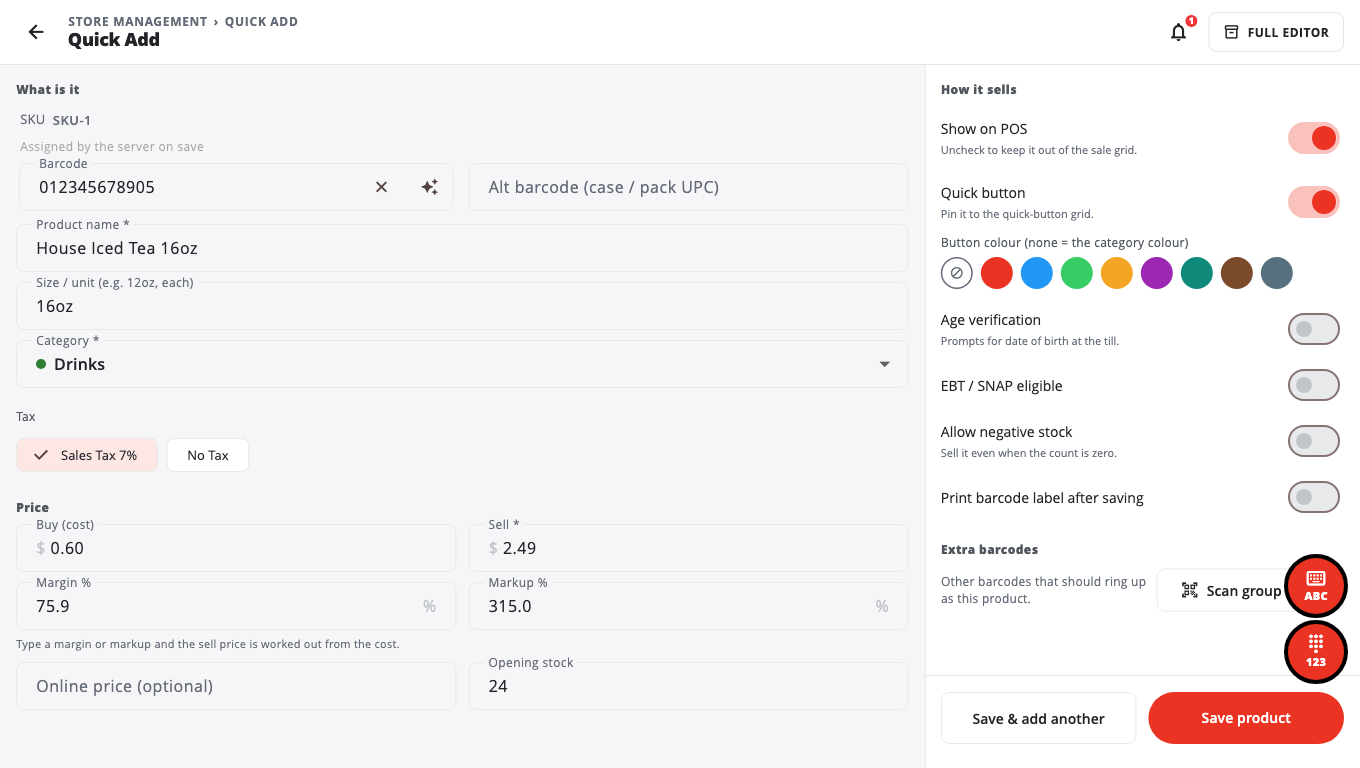
Add a new product (Quick Add)#
- Open More and tap Quick Add. Owners and Admins go straight in. A Manager is asked for an Owner or Admin PIN.
- Under What is it, scan or type the Barcode. To make a store barcode, tap the generate button next to it. Enter the Product name, and the Size / unit if you use one.
- Pick a Category and the Tax.
- Under Price, enter Buy (cost) and Sell. You can type a Margin % or Markup % instead and the sell price is worked out from the cost.
- Enter the Opening stock if you track stock.
- Under How it sells, set the switches you need: Show on POS (on by default), Quick button, Age verification, EBT / SNAP eligible, Allow negative stock, and Print barcode label after saving.
- Tap Save product, or Save & add another to keep the category, tax and switches for the next item.
Need every field (variants, modifiers, images)? Tap Full editor at the top.
When a scanned barcode is not found#
The till shows Barcode not found:
- Add Product opens Quick Add with the barcode filled in. When you save, the product goes into the sale. Cashiers cannot add products; ask a manager.
- Sell once at a price… rings the item for this sale only. Enter the price (for example
4.99), choose the tax, and tap Add to Sale. A large amount needs a manager PIN.
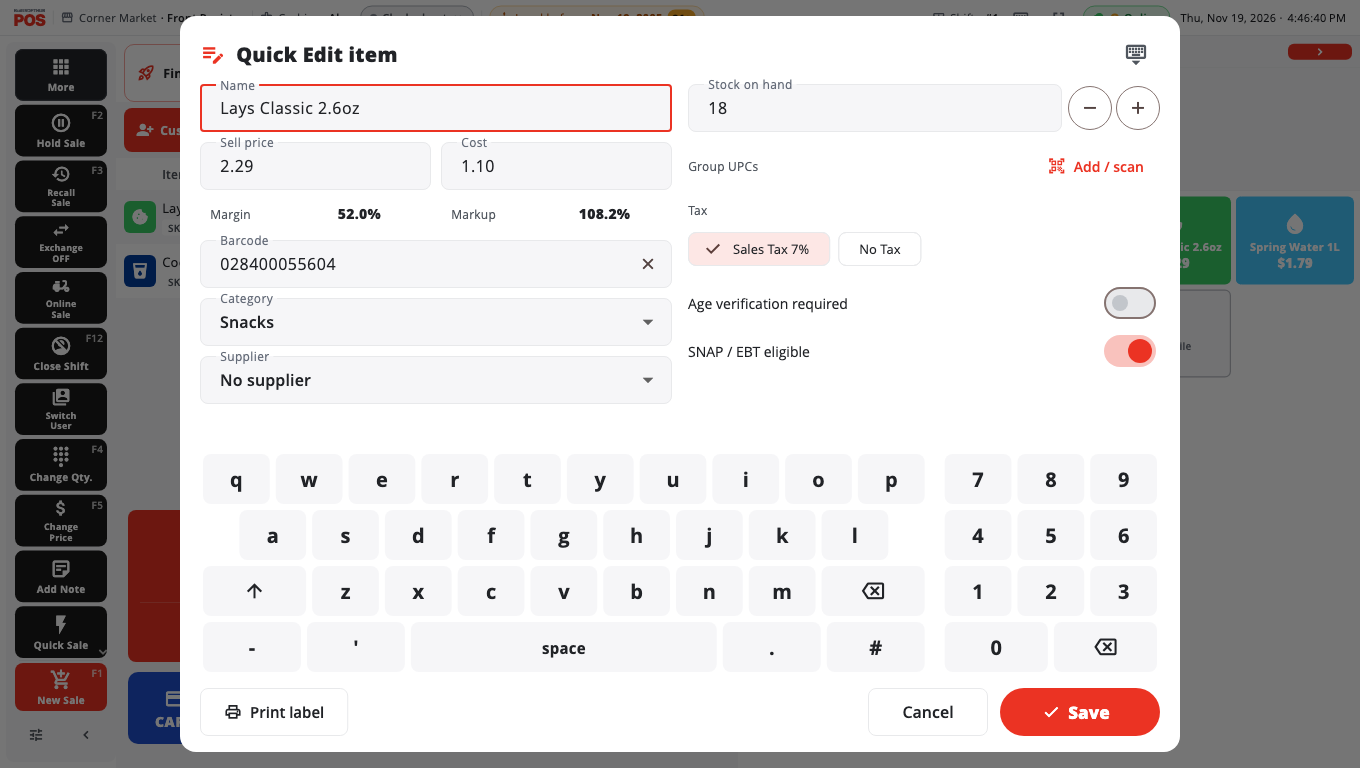
Fix a product from the cart (Quick Edit)#
- Long-press the item in the cart.
- Tap Quick Edit item. A cashier is asked for a manager PIN.
- Change the Name, Sell price, Cost, Barcode, Category, Tax, Age verification required or SNAP / EBT eligible. Margin and markup show under the prices.
- To correct the count, change Stock on hand or tap the minus / plus buttons. This is saved as a stock adjustment.
- Tap Save.
If you changed the price, BuiltPOS asks Change the price for every sale? and then Update the price on this sale?. Choose to keep the old price on this sale or update it. For one customer only, cancel and use a price override instead (see Discounts and price overrides).
Add many products by scanning (phone)#
On a phone you can scan a shelf of new items in one go. BuiltPOS fills in each name from Open Food Facts.
- Tap the logo at the top left to open the menu, tap More, then tap Bulk Import. If it shows a lock, an Owner or Admin PIN is needed.
- Tap Scan and scan a barcode with the camera. A connected scanner works too. Tap Scan Next for each item.
- Items whose name was found are ready. For an item that was not found, tap it and type the Product name. Tap the × on a line to drop it.
- Tap Save (it shows how many are ready) to create the products.
Products made this way have no price or cost yet. Open each one in Store Management → Products (or in BuiltOFFICE) and set the price before you sell it. A barcode that already belongs to a product is refused, so you never get a duplicate.
Good to know#
- Quick Edit has Print label to print a shelf label for the item.
- In stock / Out of stock buttons show in Quick Edit only when Use In stock / Out of stock is on in Terminal Settings → Advanced. It is off by default.
- Quick Edit is not offered for fuel, gift cards, deposits or coupons in the cart.
- Saved offline? The change is kept on this till and sent when the connection is back.
- For bigger catalogue work, use BuiltOFFICE. See Products and categories.
Related#
Was this helpful?
Thanks for letting us know.
Sorry it did not help. Tell us what was missing: open Help & Support in the app and choose Report a problem, or email support@builtsofthub.com.