
Adjust stock and count inventory
Add or remove stock for one product, or scan the shelves to count stock and apply the differences.
Owners, Admins, Managers and Shift Leads can use these pages without an extra PIN. Cashiers cannot.
Adjust stock for one product#
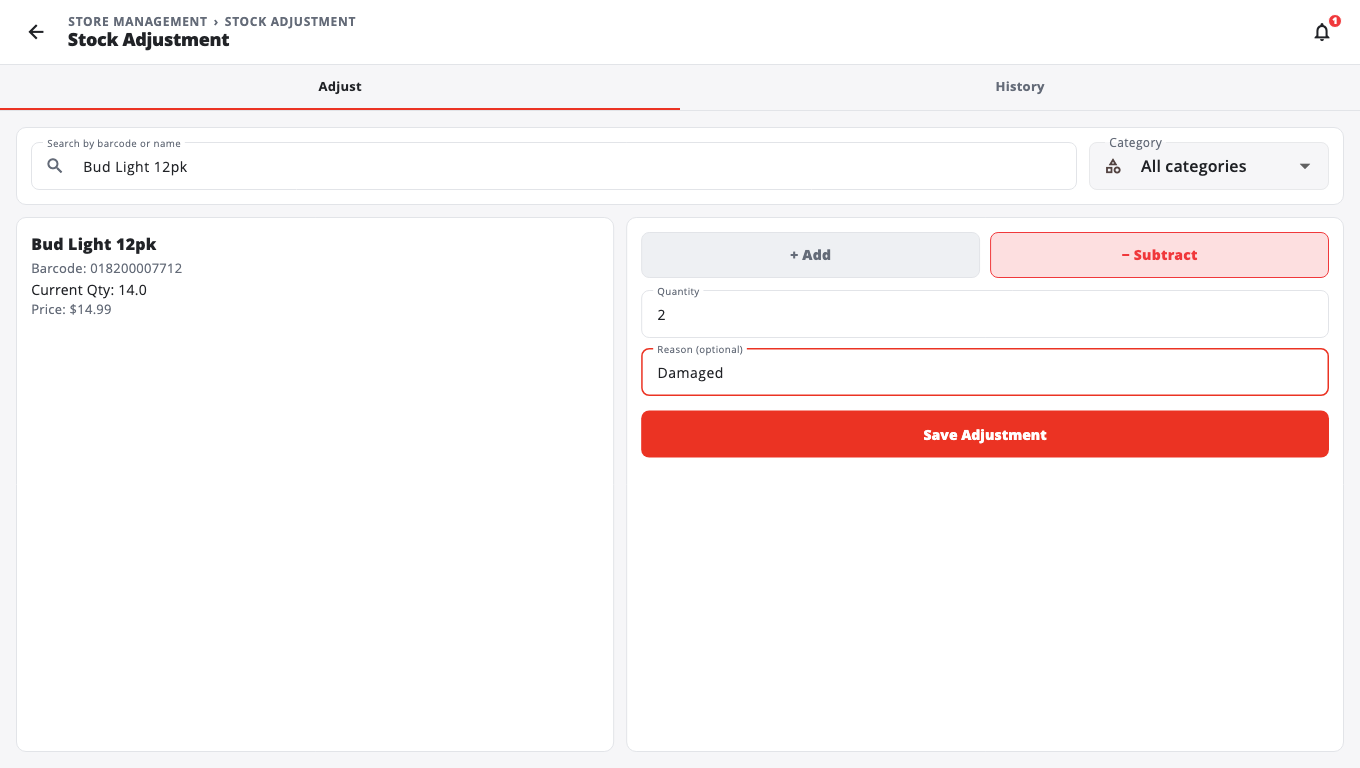
- Open Store Management → Stock Adjustment. (A Manager sees it under Manager tools.)
- Scan the product, search for it (Search by barcode or name), or pick a category.
- Check Current Qty.
- Choose + Add or − Subtract.
- Enter the Quantity and, if you like, a Reason (optional).
- Tap Save Adjustment.
The History tab lists recent adjustments.
Count the shelves (Inventory Count)#
- Open Store Management → Inventory → Inventory Count.
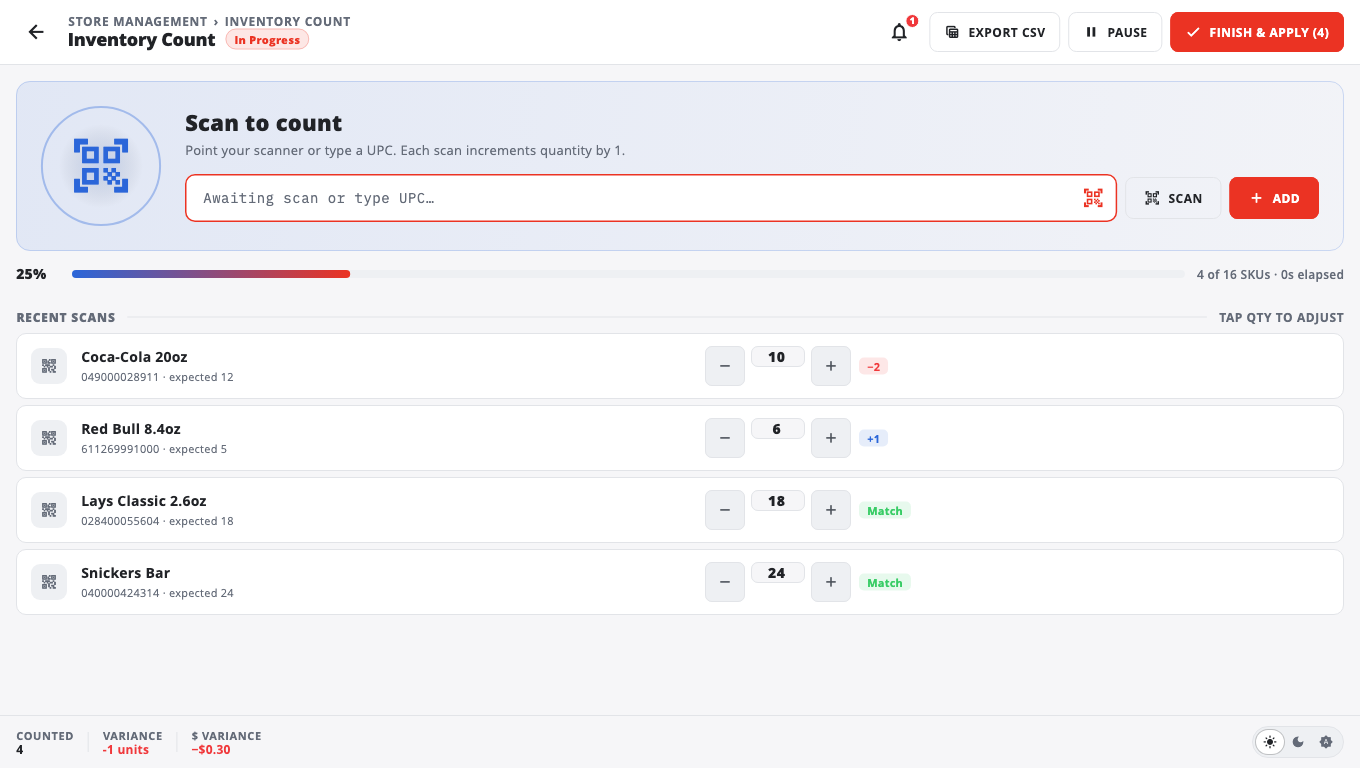
- Scan each item. Every scan adds 1 to its count. You can also type a barcode and tap Add, or use the camera.
- Fix a count with the minus and plus buttons on the line. Each line shows the Variance against what the till expected (Match when it is the same).
- Need a break? Tap Pause. Your scanned lines stay on screen until you apply or clear them.
- When done, tap Finish & Apply, then Apply to confirm.
The differences are added to or taken from stock and recorded against your name. Export CSV saves the count to a spreadsheet first if you want a record.
Good to know#
- On the Stock Adjustment page you can take stock below zero when the product has Allow negative stock on, or when the till's Allow Negative Stock switch is on (Store Management → This Till → Terminal Settings → Stock Settings; it is on by default). With both off, you cannot subtract more than is on hand. Quick Edit follows the same rule.
- You can also change one item's stock from the cart with Quick Edit. See Add and edit products at the till.
- To change cost and quantity for many products in one list, use Inventory → Stock & Price.
- If a count is running in BuiltOFFICE, the till shows Inventory count in progress. See Inventory counts.
- Adjustments made offline are kept on the till and sent when the connection is back.
Was this helpful?
Thanks for letting us know.
Sorry it did not help. Tell us what was missing: open Help & Support in the app and choose Report a problem, or email support@builtsofthub.com.