
Choose the card terminal for a till
Pick which card terminal a till uses, switch to another one, or turn card terminals off — and why payment setup needs BuiltPOS support.
Payment setup is done by BuiltPOS#
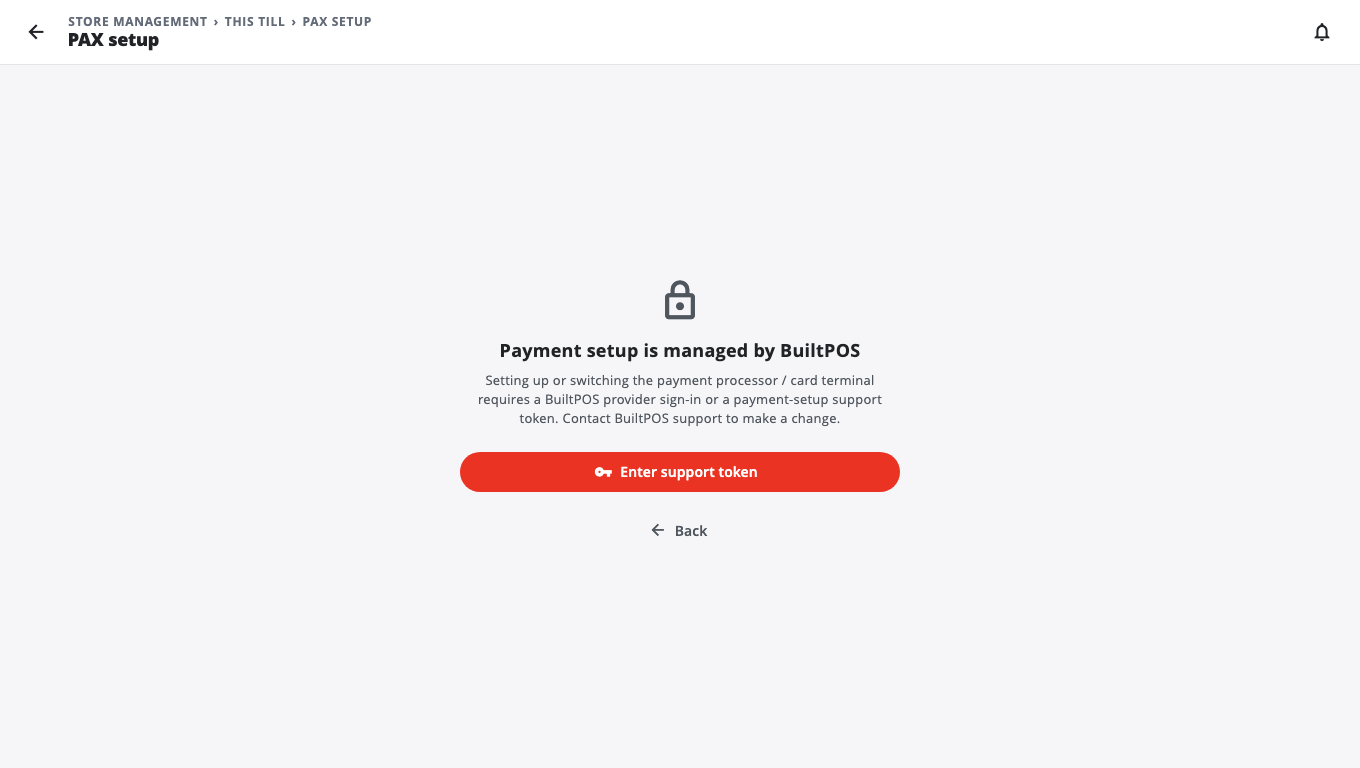
Setting up a card terminal, or changing its connection details, is managed by BuiltPOS. When a store owner or manager opens a brand's page (PAX, Clover, Worldpay, Verifone or Ingenico), the till shows Payment setup is managed by BuiltPOS.
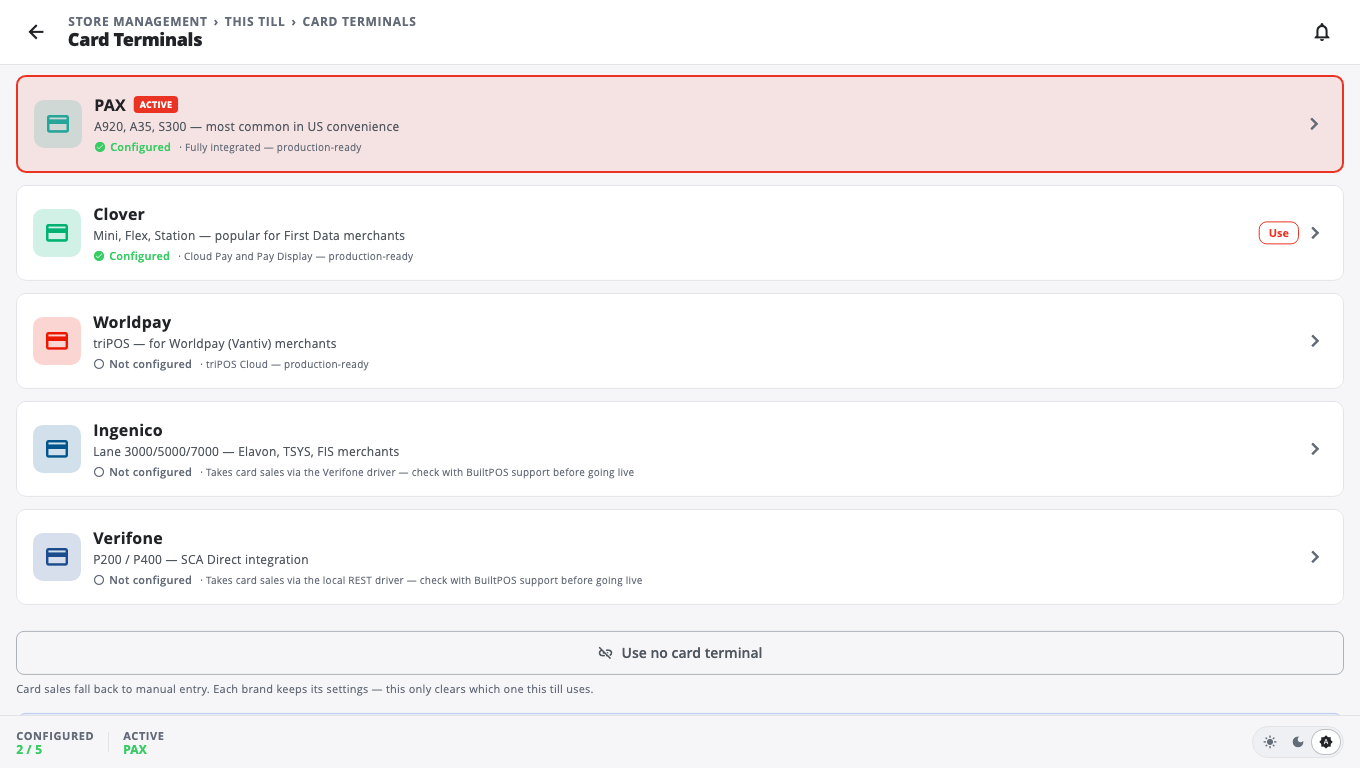
Switching between terminals that are already set up is not locked. An Owner or Admin (or a manager who entered an Owner or Admin PIN to open Store Management) can open the Card Terminals list, tap Use on a terminal that is already set up on this till, or tap Use no card terminal. On that list each brand shows a padlock; tapping it says setup is managed by BuiltPOS.
To set up a terminal or change its details:
- Contact BuiltPOS support and tell them which terminal you have.
- Support either sets it up for you, or gives you a payment-setup support token for your store.
- On the till, tap Enter support token (on the Card Terminals list or the brand's page), type the token and tap Unlock. The token works on this till only, until it expires.
Pick the terminal#
- Open Store Management → This Till → Card Terminal.
- The list shows PAX, Clover, Worldpay, Ingenico and Verifone, each marked Configured or Not configured. The one in use carries an ACTIVE badge.
- Tap a brand to enter its connection details:
- When a brand is configured, tap Use on its row to make it this till's terminal. Saving the PAX, Clover, Verifone or Ingenico page also makes that brand active; after saving Worldpay, come back and tap Use.
Stop using a card terminal#
Tap Use no card terminal below the list. Card sales then fall back to manual entry. Each brand keeps its settings, so you can switch back later with Use.
Good to know#
- The choice is per till. Each register can use a different terminal.
- The choice is also saved to your store account, so it comes back after an update or a re-install. If the till is offline it says it will sync when back online.
- Terminal Settings → Payment Reader shows which terminal this till uses and has an Open Card Terminal button.
- Taking a card payment: Take a card payment. Problems: Card terminal troubleshooting.
Was this helpful?
Thanks for letting us know.
Sorry it did not help. Tell us what was missing: open Help & Support in the app and choose Report a problem, or email support@builtsofthub.com.