
Set up a PAX card terminal
Connect a PAX A920, A35 or S300 over your network (BroadPOS, port 10009), find it automatically and test it.
Payment setup is managed by BuiltPOS. You need BuiltPOS support, or a payment-setup support token from them, to open this page — see Choose the card terminal for a till.
On the PAX terminal#
- Connect the PAX to the same Wi-Fi or network as the till.
- Open the BroadPOS payment app and turn on ECR communication over Ethernet / TCP-IP on port 10009.
- Note the PAX's IP address (shown in its network settings). Ask your network installer to give it a fixed (reserved) address if you can.
On the till#
- Open Store Management → This Till → Card Terminal → PAX.
- Enter the Device IP Address, or tap Find PAX on network to search this till's network.
- If more than one PAX answers, check the serial number (S/N) on the back of yours before you tap it — another business's terminal can be on the same network.
- Leave Port on 10009 and Protocol on TCP.
- Tap Test. You should see PAX terminal online (model · S/N …).
- Tap Save. PAX becomes this till's card terminal.
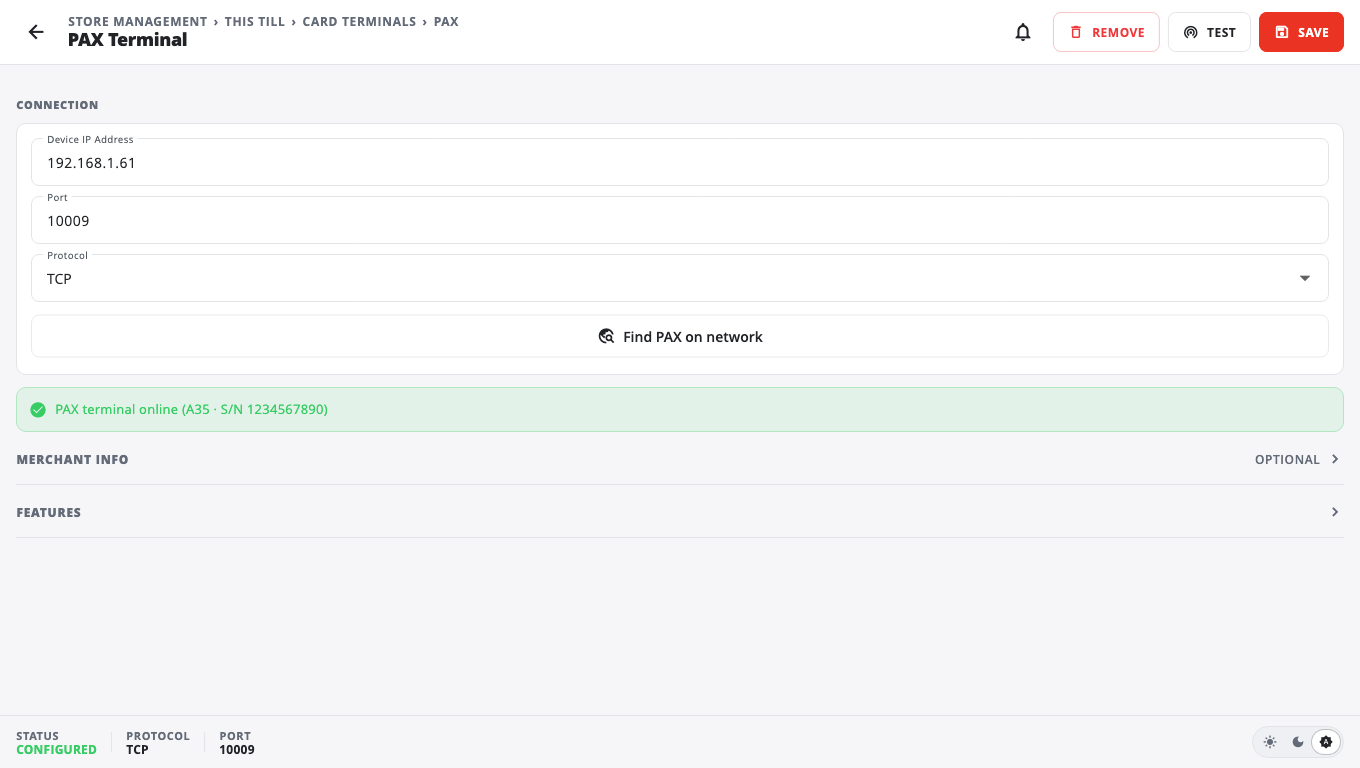
Testing before you save matters: the till then remembers the terminal's serial number. If the PAX later gets a new IP address (for example after a router restart), the till looks for that same terminal on the network by itself.
Options#
- Tip prompt — Off or On customer display (the customer picks a tip on the customer display before the card runs). BuiltPOS cannot ask a PAX to prompt for a tip per sale; if your PAX has its own tip prompt, set it in the PAX menu and leave this Off.
- EBT balance inquiry — off by default. Turn on to show Check EBT balance on the payment screen, if your PAX firmware supports it.
- Ask for rewards phone number on PAX — off by default. When on, the PAX asks the customer for their phone number if no customer is on the sale. What happens next:
- The number matches one customer: that customer is put on the sale and the card is charged.
- Several customers share the number: the till shows them and you pick one before the card is charged.
- The number matches nobody: the card is charged straight away. After the sale, the receipt screen shows Add this customer? (phone …) with Add customer and No thanks. Adding them saves the customer for next time; this sale's points can't be added afterwards.
- Timeout — how long the till waits for the terminal to answer. 120s suits most stores.
- Terminal ID (optional) and Merchant ID (optional) under Merchant Info.
The till is a PAX terminal (A920)#
If BuiltPOS runs on the PAX itself, the page says This till is a PAX terminal. Turn on ECR / TCP-IP on port 10009 in BroadPOS, tap Use the payment app on this device, then Test and Save.
Good to know#
- Remove clears the PAX settings; card sales then use manual entry.
- After a timeout or error, always look at the PAX screen before you charge again. The till keeps the same sale reference on Retry and blocks a second send of the same sale for a few minutes (Duplicate charge prevented), so a customer is not charged twice by accident.
- A PAX terminal's own printer cannot print BuiltPOS receipts yet — use a network receipt printer.
- Problems: Card terminal troubleshooting.
Was this helpful?
Thanks for letting us know.
Sorry it did not help. Tell us what was missing: open Help & Support in the app and choose Report a problem, or email support@builtsofthub.com.