
Card terminal problems
What to do when a card is declined, the terminal can't be reached, a payment times out or the till says payment setup is locked.
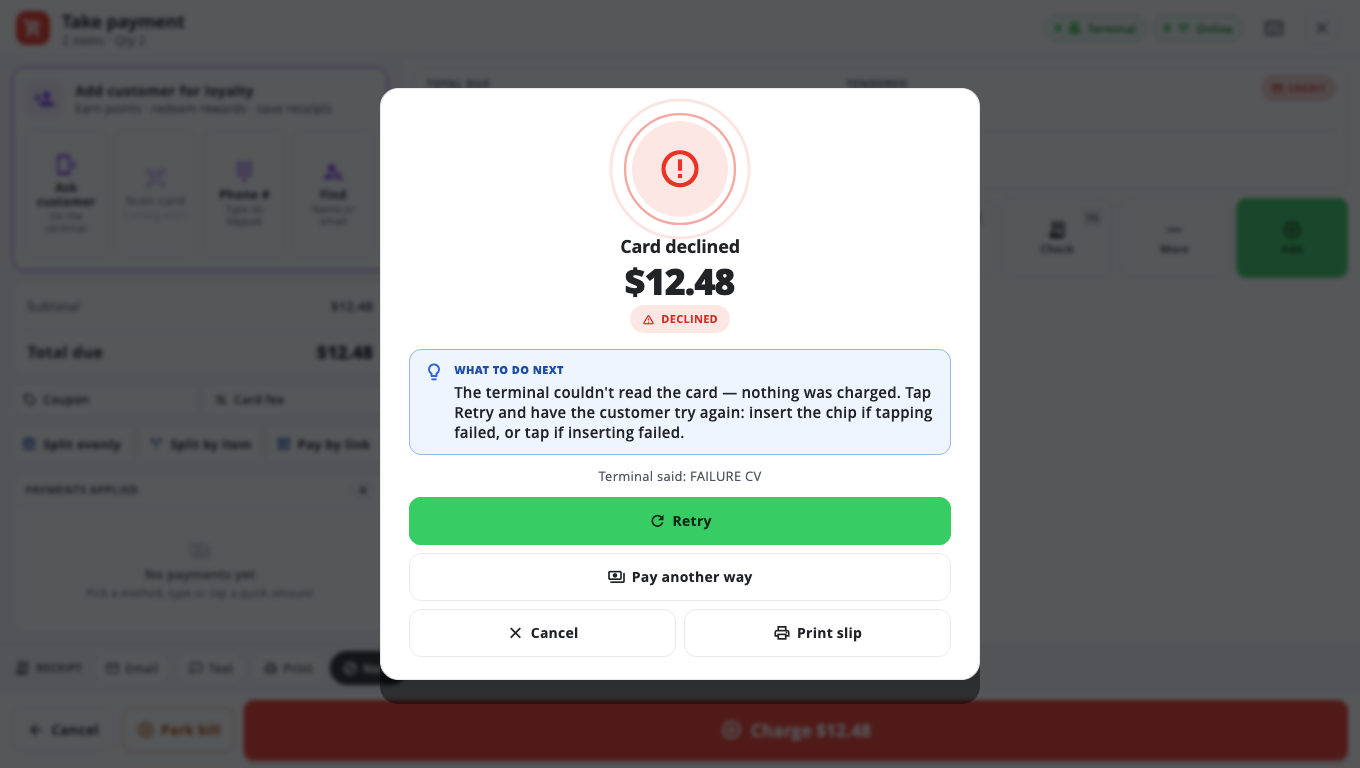
When a card payment fails, the payment screen shows a WHAT TO DO NEXT box at the top, then Terminal said: … with the terminal's own words. Follow the box first.
Golden rule after a timeout or error#
Look at the card terminal screen before charging again.
- If it shows APPROVED, do not charge again — tell a manager.
- If it shows declined or nothing, tap Retry (or use another way to pay).
Retry reuses the same sale, and the till blocks the same sale from being sent twice for a few minutes. If you see Duplicate charge prevented, check the terminal for the earlier attempt before you do anything else.
The terminal can't be reached#
"Nothing was charged. Check the card terminal is turned on and on the same network as this till…"
- Check the terminal is on and showing its normal screen (not updating).
- Check the till and terminal are on the same Wi-Fi or router.
- PAX: the terminal may have a new IP address. If the PAX was tested once on this till, the till searches for it by itself. Otherwise ask support to use Find PAX on network. See PAX terminal.
- Clover Cloud Pay and Worldpay Cloud need the internet. If the internet is down, take cash or wait and tap Retry.
Common terminal messages#
- FAILURE CV — have the customer try again: insert the chip if tapping failed, or tap if inserting failed.
- HOLD-CALL / Call issuer — the bank wants the customer to call the number on the back of the card. Ask for another card or another way to pay.
- Parameter Error — tap Retry once; if it happens again, restart the card terminal.
- Updating, please wait — wait for the terminal's normal screen, then Retry.
- Tap terminated — tap again and hold the card still, or insert the chip.
- A partial approval — check the terminal screen before charging again.
"Payment setup is managed by BuiltPOS"#
Store owners and managers can't set up a card terminal or change its details. An Owner or Admin can still switch to another terminal that is already set up on this till, or choose Use no card terminal. For anything else, contact BuiltPOS support — see Choose the card terminal for a till.
"The card terminal is not set up on this till" / card sales go to manual entry#
No terminal is selected on this till, or its settings were removed. Open Store Management → This Till → Card Terminal and check one brand shows ACTIVE. If none does, contact BuiltPOS support.
"The card terminal account was refused"#
The connection to the processor was refused. For Clover, see If Clover says it is not allowed. Otherwise contact BuiltPOS support to reconnect it, and take another payment type meanwhile.
Clover is in Sandbox#
If test sales go through but no money arrives, check Environment on the Clover page is Production. For Worldpay, check Sandbox / Certification is off.
More: Take a card payment, Card terminal (till) troubleshooting.
Was this helpful?
Thanks for letting us know.
Sorry it did not help. Tell us what was missing: open Help & Support in the app and choose Report a problem, or email support@builtsofthub.com.