
Clock in, take a break and clock out
Use the Time Clock to clock in and out and take breaks, and see how the till's clock-in rules work.
Clock-ins and clock-outs are your hours for payroll. They are saved on the till and sent to BuiltOFFICE.
Clock in or out#
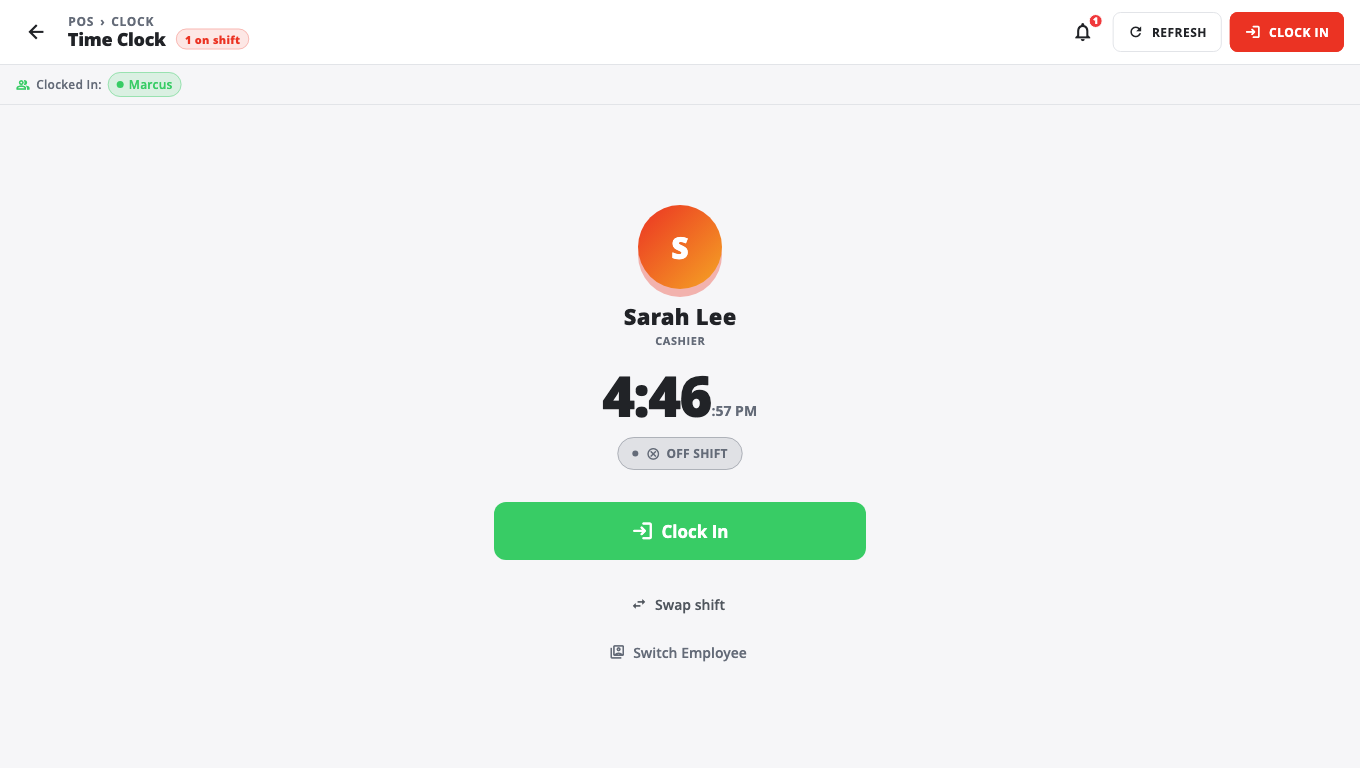
- Open the Time Clock: tap Time Clock on the Home screen, or in More.
- Enter your PIN (Enter Your PIN).
- Your status shows as OFF SHIFT, CLOCKED IN or ON BREAK.
- Tap the button you need:
- Clock In to start work.
- Take a Break to start a break, then Resume Work when you are back.
- Clock Out when you finish.
- Tap Switch Employee to let the next person clock in.
The Time Clock works without a shift open, so staff can clock in before the drawer is counted.
How clock-in works with shifts#
Two switches on each till decide this. Both are on by default. Find them in Store Management → This Till → Terminal Settings → Cash Drawer:
- Auto clock-in on shift start — whoever starts the shift is clocked in at the same moment. On a till that does not use shifts, people are clocked in when they sign in instead.
- Require clock-in to sell — anyone who is not clocked in sees Clock in to start selling instead of the sale screen. Tap Clock in to carry on.
When a shift closes and someone is still clocked in, BuiltPOS asks Clock out at close?. Ticked people are clocked out. Untick anyone still working.
Swap or give away a shift#
If your store plans shifts in BuiltOFFICE:
- On the Time Clock, after entering your PIN, tap Swap shift.
- Under My upcoming shifts, tap Give away or Trade on a shift.
- Pick a coworker and send the request. A manager approves it.
Shift swaps need a connection to the store server.
Good to know#
- "An older clock-in is still open on the server." Someone left a clock-in open from an earlier day. A manager should close it in BuiltOFFICE. To sell for now, a manager can tap Manager override — sell without clock-in.
- "Already clocked in on … — adopted here." You clocked in on another till. This till takes over that clock-in; you are not clocked in twice.
- Offline: clocking in and out still works. The punches sync when the connection is back.
- Fix wrong hours and run payroll in BuiltOFFICE. See Employees and roles.
Related#
Was this helpful?
Thanks for letting us know.
Sorry it did not help. Tell us what was missing: open Help & Support in the app and choose Report a problem, or email support@builtsofthub.com.