
Hardware overview
Where every printer, card terminal, scanner, scale and display is set up on a BuiltPOS till, and who can change it.
Every piece of hardware is set up on the till it is connected to. Each register keeps its own printer, drawer, scanner, scale and display settings, so set up each till one at a time.
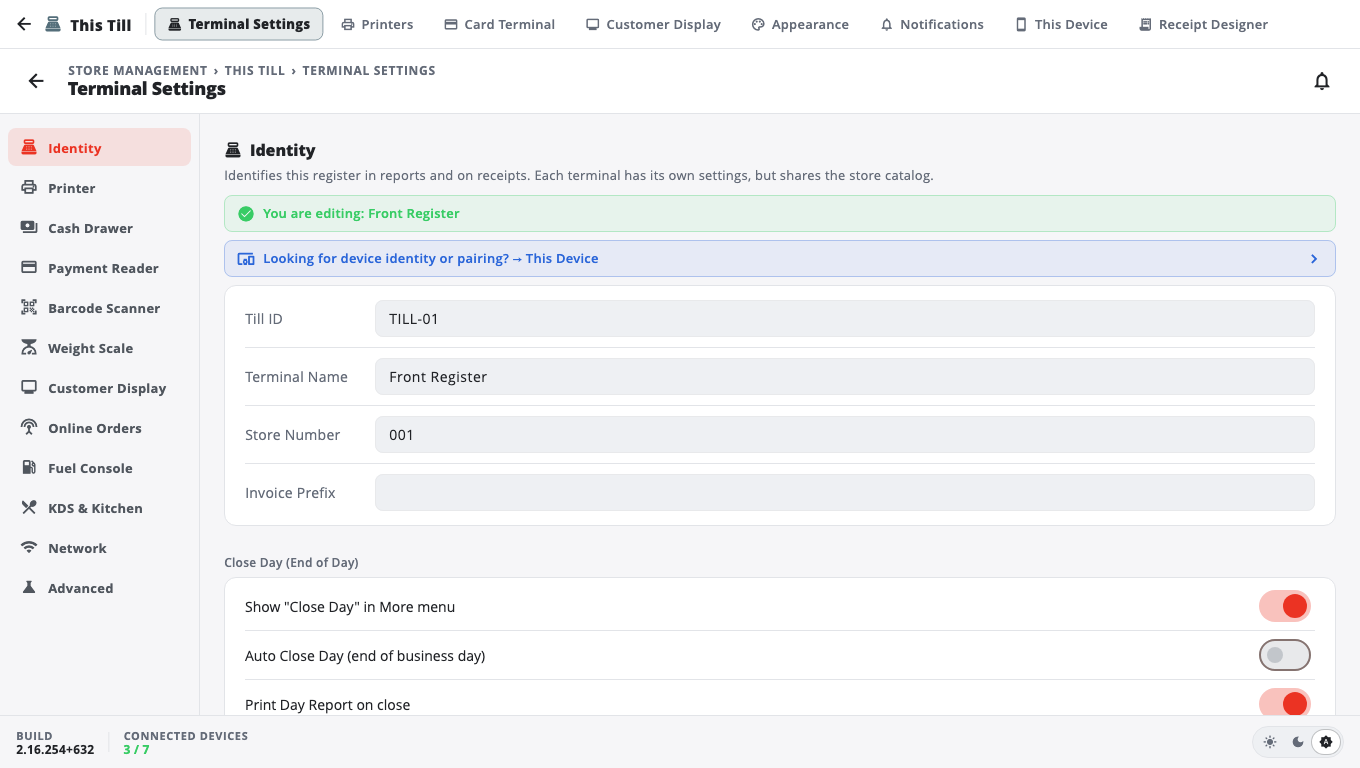
Where the settings live#
- On the till, open Store Management — from the left panel, or from Manager's Functions. A manager or owner PIN may be asked for.
- Open This Till. Its tabs hold everything for this register:
- Terminal Settings — receipt printer, label printer, cash drawer, card reader choice, barcode scanner, weight scale, customer display and kitchen settings, in sections down the left side.
- Printers — the receipt printer, the default kitchen printer and one printer per prep station, on one page.
- Card Terminal — which card terminal this till uses.
- Customer Display — the screen your customer sees.
- Change what you need, then tap Save at the top right. Most settings do nothing until you save.
Who can change what#
- Printers, drawer, scanner, scale and customer display: a manager or owner can change these on the till.
- Card terminals: payment setup is managed by BuiltPOS. A store owner or manager sees Payment setup is managed by BuiltPOS instead of a terminal's settings. An Owner or Admin can still switch between terminals that are already set up, or choose Use no card terminal. Contact BuiltPOS support; they set it up for you or give you a one-time payment-setup support token to enter with Enter support token. See Choose the card terminal for a till.
- Printers assigned in BuiltOFFICE: if a printer row says Assigned in BuiltOFFICE, change it in BuiltOFFICE, not on the till. See Kitchen stations and printers.
Set up in this order#
- Receipt printer — print a test page.
- Cash drawer — it opens through the receipt printer.
- Barcode scanner.
- Card terminal: PAX, Clover, Worldpay or Verifone / Ingenico.
- Optional: kitchen printers, label printer, scale, customer display.
Good to know#
- Not sure your device will work? See Which hardware works.
- BuiltPOS runs on Windows, iPad/iPhone and Android. What you can plug in depends on the device — for example, USB printers work through Windows only.
- A Sunmi register has its own article: Sunmi devices.
Was this helpful?
Thanks for letting us know.
Sorry it did not help. Tell us what was missing: open Help & Support in the app and choose Report a problem, or email support@builtsofthub.com.